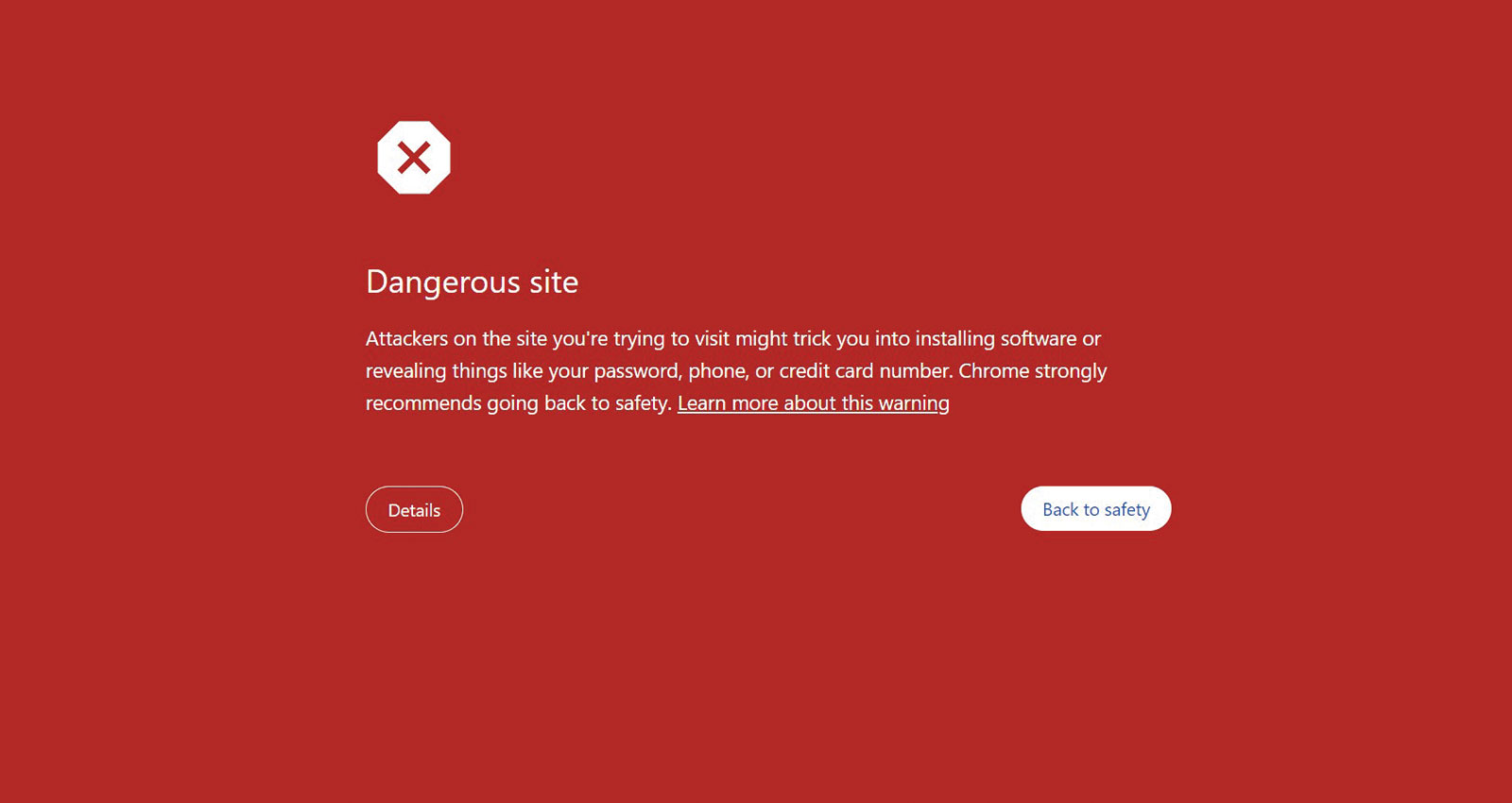
Our online safety has become increasingly important as we spend more time browsing the web. One of the most critical tools designed to protect users is Google’s D a n g e r o u s S I t e warning in Chrome. You may have encountered this alarming message:
“Attackers on the site you’re trying to visit might trick you into installing software or revealing things like your password, phone, or credit card number. Chrome strongly recommends going back to safety.”
Seeing a warning like this can be unsettling, especially if you were expecting to visit a legitimate website. But what exactly does it mean, and how should you respond?
In this post, we’ll explore what triggers this warning, how Chrome protects you, and, most importantly, what steps you should take when encountering it.
Why Does Chrome Display This Warning?
Google Chrome’s D a n g e r o u s S I t e warning is part of its Safe Browsing feature, a security service designed to alert you about potentially harmful sites. There are several reasons why Chrome might label a site as dangerous:
1. Phishing Attacks
Phishing sites are designed to look like legitimate websites but are fake. These websites aim to trick you into sharing sensitive information such as passwords, credit card numbers, or personal identification details. They often mimic the appearance of trusted brands, banks, or services.
2. Malware or Unwanted Software
Some websites may host malicious software, also known as malware, which can harm your device or steal your data. These sites might trick you into downloading files or installing software containing viruses, spyware, or ransomware.
3. Unsecure Connections (HTTP)
Sites that don’t have a secure connection (i.e., HTTPS) may be flagged, especially if they ask for sensitive information. Without encryption, your data can be intercepted by attackers. If a site still uses HTTP rather than HTTPS, Chrome might warn you that the connection isn’t secure.
4. Recent Site Compromise
Even legitimate websites can get hacked. If attackers have compromised a website you trust, it may start serving harmful content without the knowledge of its owners. Chrome’s Safe Browsing system detects this and warns you before you enter the site.
What Should You Do When You See This Warning?
Seeing a “Dangerous Site” warning is a red flag, and it’s best to treat it seriously. Here’s a step-by-step guide on how to respond:
1. Go Back to Safety
Your best option is to heed Chrome’s warning and navigate away from the site. Clicking “Go back” will redirect you to a safer page, helping you avoid any potential risks. If the warning is triggered, the chances of encountering phishing or malware are high.
2. Double-Check the URL
Sometimes, a warning could pop up due to a typo in the URL. Scammers often create web addresses that look almost identical to legitimate sites. For example, instead of “www.amazon.com,” you might accidentally type “www.amaz0n.com” (with a zero), leading to a phishing site. Always verify the URL to make sure you’re visiting the correct domain.
3. Report a False Positive
If you believe the site is safe and the warning is in error, you can report it as a false positive by clicking the “Learn more” link on the warning page. Google provides a way for website owners and users to request a review if they believe the warning is unjustified.
4. Run a Security Scan
Suppose you visited the site before seeing the warning or accidentally downloaded something suspicious. In that case, it’s a good idea to run a full system scan using reliable antivirus or anti-malware software. This can help catch and remove any harmful files before they do damage.
How Can You Protect Yourself from D a n g e r o u s Websites?
While Google Chrome’s Safe Browsing feature offers robust protection, staying vigilant and adopting good security practices is essential. Here are a few tips to keep you safe while browsing:
- Keep Your Browser and OS Updated: Regular updates ensure you’re protected against the latest security vulnerabilities.
- Use a Reliable Antivirus Program: An up-to-date antivirus program can detect malware before it harms your system.
- Enable Two-Factor Authentication (2FA): Whenever possible, use 2FA for your accounts to add an extra layer of security.
- Check for HTTPS: Always ensure websites, especially those asking for sensitive information, use HTTPS instead of HTTP.
- Be Skeptical of Links: Avoid clicking on suspicious or unfamiliar links, especially in emails or on social media.
The internet is whole of valuable information and opportunities, but it also has its share of risks. Google Chrome’s “Dangerous Site” warning protects you from phishing, malware, and other online threats. While it might feel inconvenient to encounter these warnings, they play a crucial role in safeguarding your personal information and devices.
Understanding what triggers these alerts and taking appropriate action can significantly reduce your chances of falling victim to an attack. The next time you see the warning, remember: it’s better to be safe than sorry.
Stay safe and browse smart!

